How do I add candidates to the Talogy system?
There are three ways to add candidates to the True Talent platform and each is described below:
- At the time of “Assignment” of an assessment or workflow, either in bulk or individually
- On the “Manage Candidates” page, individually
- On the “Upload Candidates” page, in bulk.
At the Time of Assignment
- To add a candidate to the True Talent platform at the time of assignment, click “Assignment” under the “Assign” tab. (Screen 1)
- Select the assessment or workflow to be assigned by clicking the plus sign (“+”) in the “Add” column.
- Click “Continue.” (Screen 2)
- Next, create accounts for the people (candidates) who will take the assessment(s) by clicking “Create Candidate.”
OPTION: To upload candidates in bulk during assignment, click “Upload Candidates” instead of “Create Candidate.” See detailed instructions here. - Fill out the required information, and click “Save.” You have now created a candidate in the system. (Screen 3)
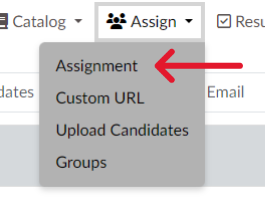
Screen 1
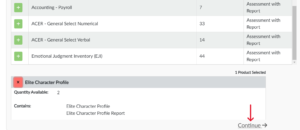
Screen 2
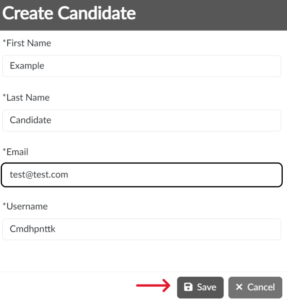
Screen 3
On the “Manage Candidates” Page
- Under the “Settings” tab (3 wheels icon), click “Candidates.” (Screen 1)
- Click “Add New Candidate.” (Screen 2)
- Provide the required information then click “Save.” (Screen 3)
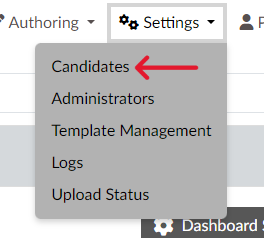
Screen 1
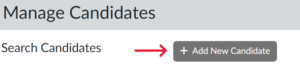
Screen 2
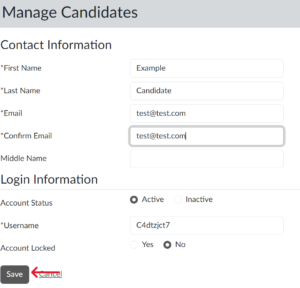
Screen 3
On the “Upload Candidates” Page
- Click “Upload Candidates” under the “Assign” tab. (Screen 1)
- Click “Default Template” or use a previously created spreadsheet. (Screen 2)
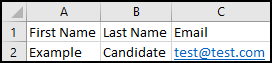
- If you use the default template, fill out the required fields and save to your desktop. (Screen 3)
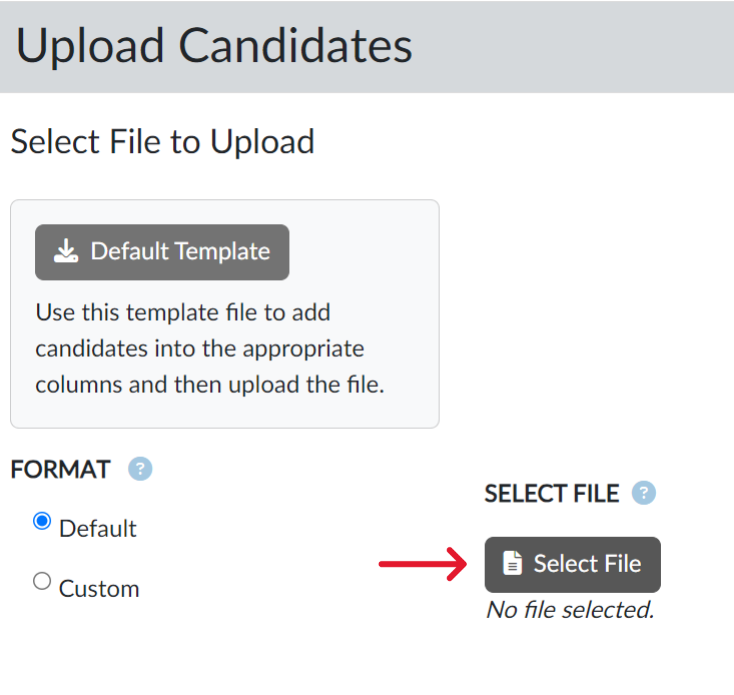
- Click “Select File.” (Screen 4)
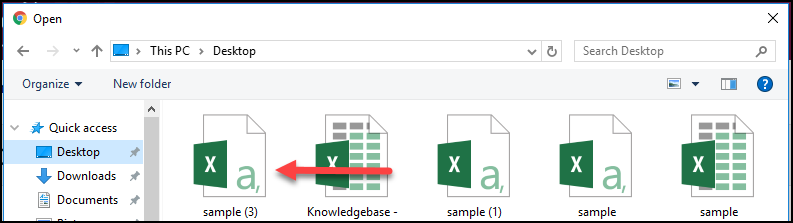
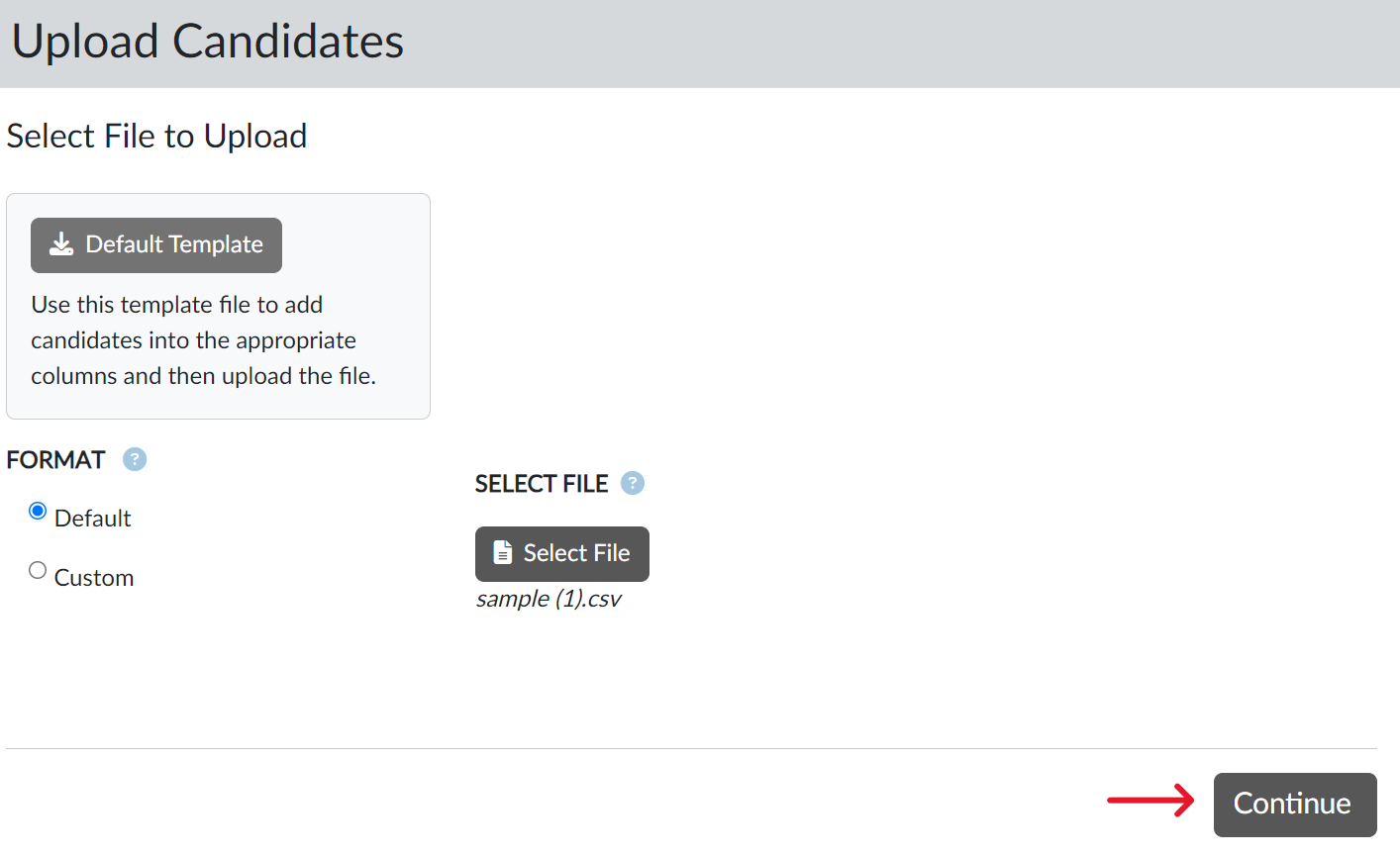
- Choose the appropriate file (Screen 5) and click “Continue.” (Screen 6)
- If desired, add candidates to a group, then click “Continue.” (Screen 7)
- Click “Upload Candidates.” (Screen 8)
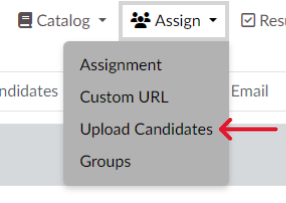
Screen 1
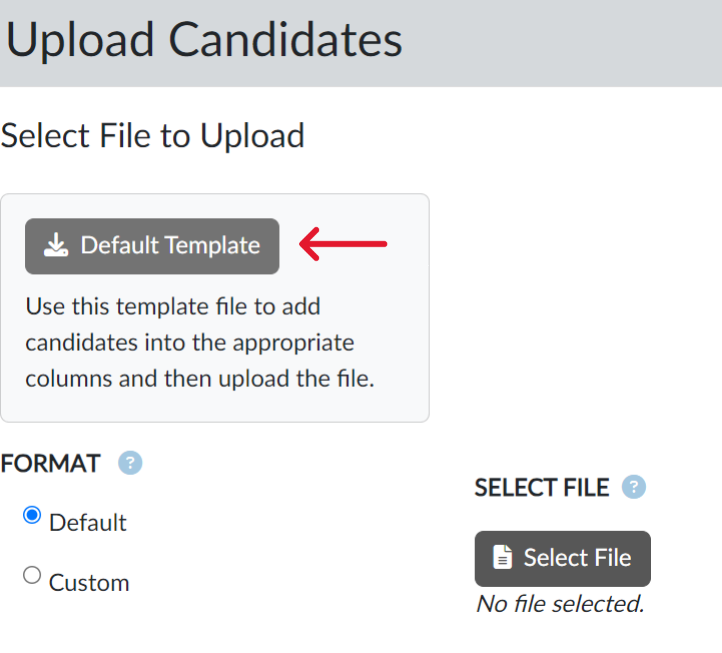
Screen 2
Screen 4
Screen 6
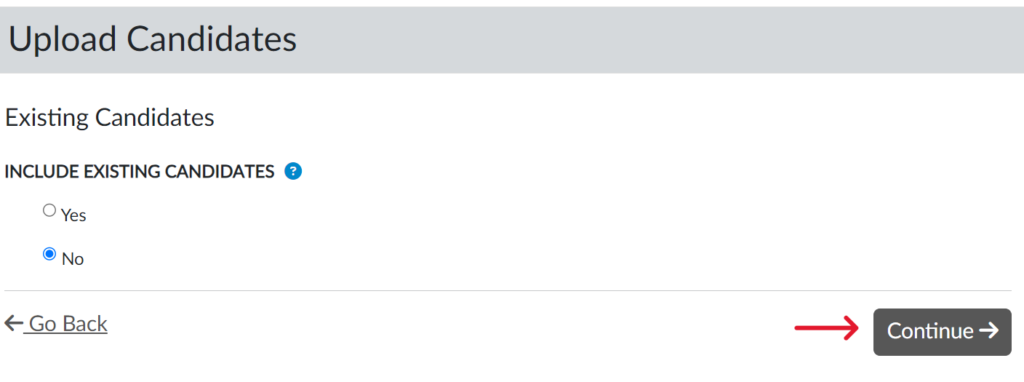
Screen 7
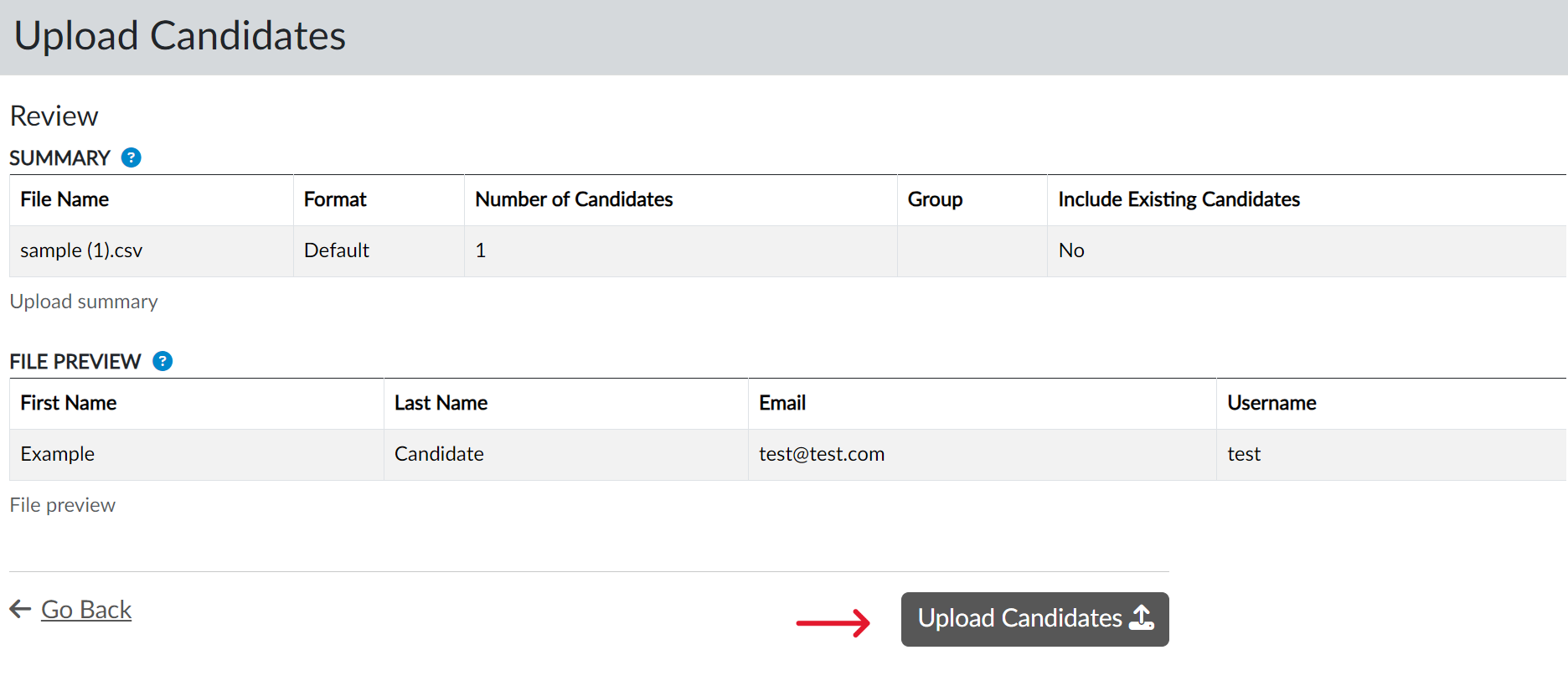
Screen 8
NOTE: The above steps will NOT assign the assessment or workflow. To do so, follow the steps in the How do I assign an assessment to a candidate? or How do I assign a Workflow to a candidate? sections, and select “Search Existing” when choosing candidates.